
The cloud workspace
What your team sees at qaclan.com once the agent starts syncing, page by page.
The agent on your machine does the testing. The cloud workspace is where the results become visible to people who are not sitting at that machine — and where run history from several machines lands in one place.
Nothing here runs tests. It is a view onto what your agents have already done. See Sync, team and plans for what is carried up and when.
What the Community plan can see
On the Community plan the workspace is limited to Settings — enough to manage your auth key. Every other page is part of the Team plan and links to the upgrade page instead.
This does not restrict the agent. Recording, suites, runs and local reports are the same on both plans, with no limit on how much you create.
The sidebar
Ten pages, then a settings group of three.
| Page | Shows |
|---|---|
| Dashboard | The summary: feature count, total runs, pass rate, failures, and recent activity |
| Features | Every feature across your projects, with what each contains |
| Scripts | Every synced script, openable to read its content and history |
| Suites | Suites and their contents, in run order |
| Runs | Browser run history from every machine, openable per run |
| Reports | Six analyses across your suites — see below |
| Environments | Environments and their variables, with secrets masked |
| API Collections | Synced collections, folders and requests |
| API Runs | API run history, including negative and drift verdicts |
| API Docs | The reference generated from real traffic, per project |
The settings group holds Settings, Billing and Team.
Dashboard
The landing page: how many features exist, how many runs have happened, the overall pass rate and the current failure count, with recent runs underneath.
Before anything has synced it shows a first-run state with the commands needed to connect an agent, so a new team member has somewhere to start.
Features, Scripts, Suites and Environments
These mirror what exists on the agents that are syncing. A script opens to show its content, so somebody can read what a test actually does without installing anything. Environments show their variables with secret values masked.
They are read-only views. Tests are created and edited in the local app — see The local app.
Runs
Browser run history pooled across every machine that syncs, which is the main reason to connect the agent at all: a failure on a colleague's machine is visible to you.
Opening a run gives its per-script results, timings and the classified reason for each failure.
Reports
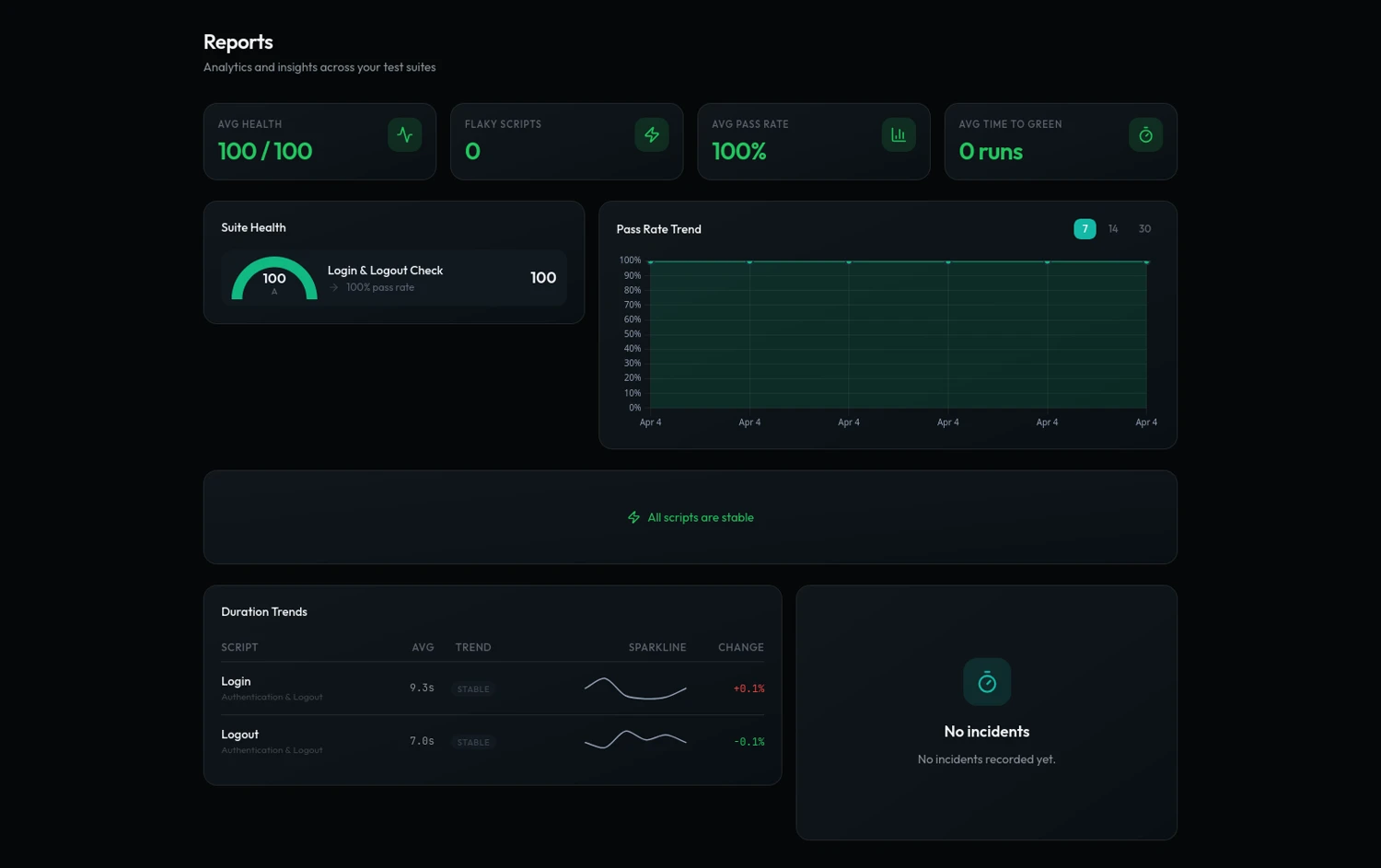
Six analyses, plus headline figures for average health, flaky script count, average pass rate and average time to green.
| Report | Answers |
|---|---|
| Suite health | Which suites are in good shape and which are not |
| Pass rate trend | Whether a suite is getting better or worse over time |
| Flaky scripts | Which scripts pass and fail without the application changing — the ones eroding trust in the suite |
| Duration trends | Which scripts are getting slower |
| Failure points | Where in a suite failures cluster |
| Time to green | How long a suite stays broken once it breaks |
A trend needs history to be a trend — a suite run fewer than three times shows a not-enough-data state rather than a misleading line.
AI script analysis
A script can be sent for analysis, which reads its content and failure history and reports what has been going wrong and what to change. It runs on Google's gemini-2.0-flash model.
The three API pages
API Collections
Your synced collections, with their folders and requests, searchable by name. Opening one shows what it contains — a way for somebody to see the shape of your API coverage without a local install.
API Run History
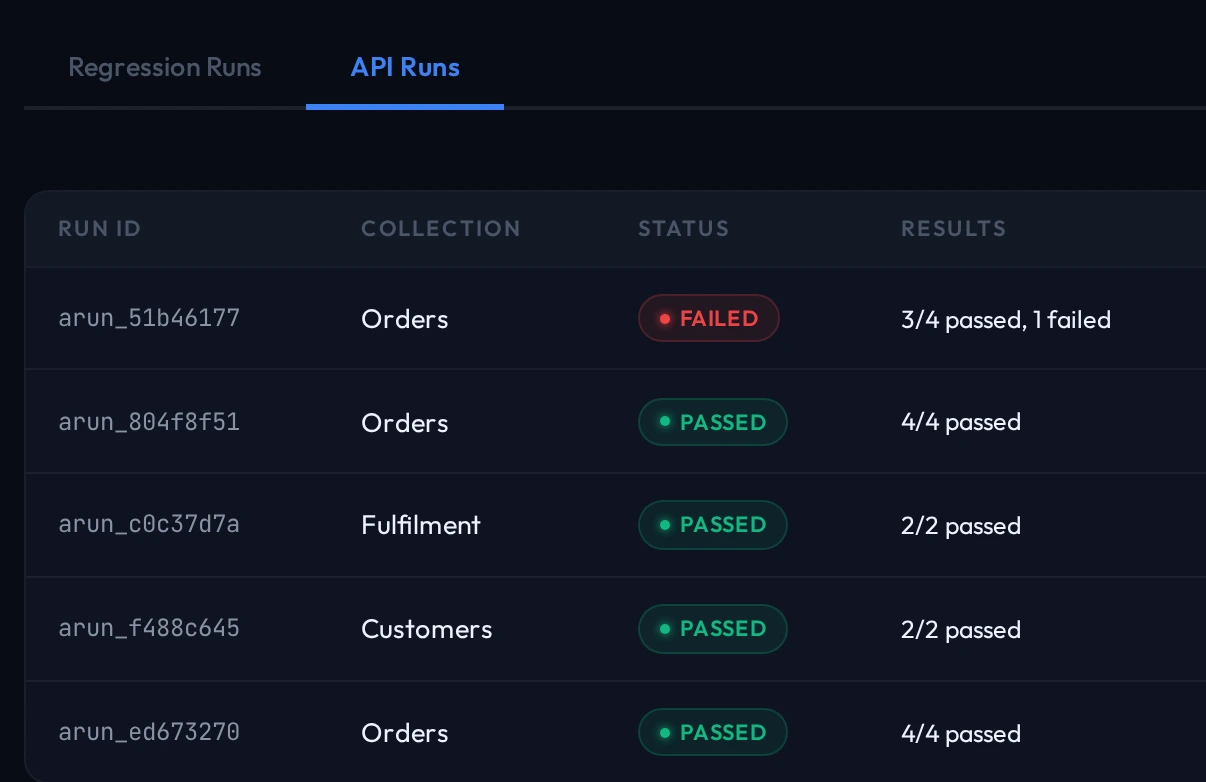
Every collection run that has synced, searchable and filterable by collection, status and date. A run opens to per-request results with assertion outcomes.
Negative-testing and schema-drift verdicts sync with the run, so the severities and the breaking-versus-additive differences described in Negative testing and schema drift are visible here too, not only on the machine that produced them.
API Docs
The reference generated from real traffic, per project: the endpoints that have actually been called, with paths normalised so /posts/1 and /posts/2 appear once as /posts/{post_id}, and the response shapes observed.
Because it is built from executed requests, it describes what the API does rather than what a specification claims. See API testing.
Team
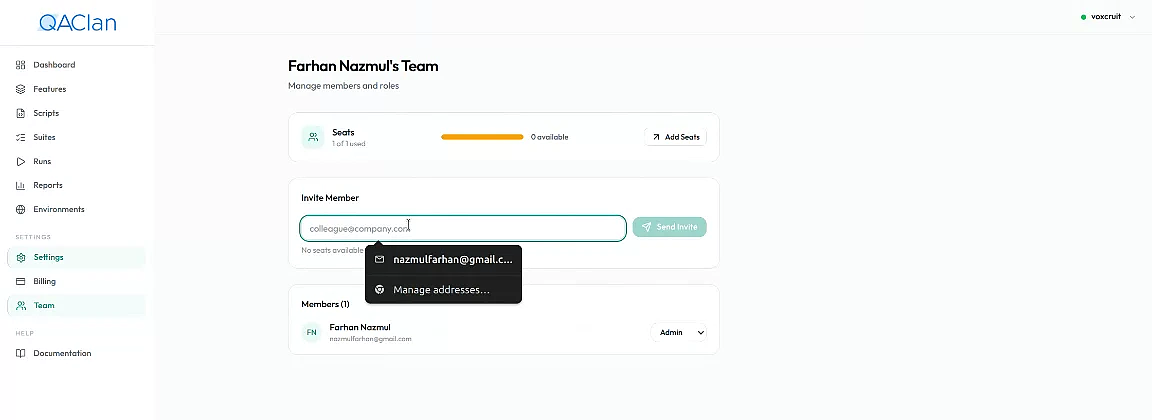
Settings → Team lists everyone in the workspace and what they can do.
- Inviting. Invite by email address. The invitation link is valid for 48 hours; after that it has to be sent again. The recipient accepts by following the link, which adds them to the workspace.
- Roles. A member is an admin or a member, changed from the members table. Admins manage the team and billing.
- Removing. A member can be removed from the same table. Their runs stay in history.
- Activity. A feed records what changed in the workspace and who changed it.
Billing and seats
Settings → Billing shows the current subscription, its renewal or access-until date, cancellation, and past invoices.
Seat count is changed on the upgrade page
Billing links to it rather than changing seats in place. Seats cannot drop below the number of members currently in the workspace — remove somebody first, then reduce the count.
Cancelling returns the account to Community at the end of the paid period. The agent carries on working exactly as before; what stops is the shared workspace, the reports and the extra seats.
Where to go next
- Sync, team and plans — what syncs, and what push and pull do
- The local app — where the work actually happens
- Suites, runs and reports — offline HTML reports, for when the recipient has no account